Introduction
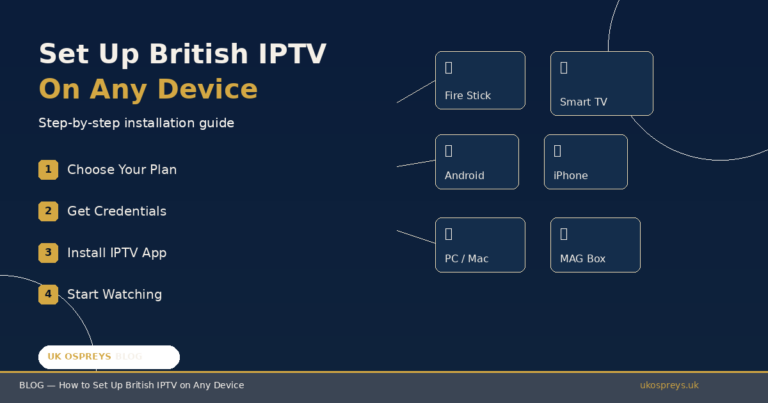
One of the best things about British IPTV is how easy it is to get up and running. Unlike traditional satellite or cable television, there is no engineer visit, no drilling holes in your wall, and no fiddly wiring. Whether you are using a Fire TV Stick in your living room, a Smart TV in the bedroom, or your phone on the train, setting up your British IPTV subscription takes less than five minutes. In this guide, we walk you through the complete installation process for every popular device in the UK.
Before You Begin — What You Need for British IPTV
Before diving into the device-specific steps, make sure you have these three things ready.
First, you need an active British IPTV subscription from UK Ospreys. If you have not subscribed yet, head over to our subscription page (link to: https://ukospreys.uk/subscription), choose your plan, and message our WhatsApp team (link to: https://wa.me/447988548254). Your login credentials will arrive within minutes.
Second, check your internet speed. British IPTV requires a stable broadband connection. For standard HD channels, 15 Mbps is sufficient. For Full HD and 4K content, including live Premier League matches and films, we recommend 30 Mbps or faster. You can test your speed at speedtest.net. The good news is that most UK broadband packages from BT, Virgin Media, Sky, TalkTalk, and Hyperoptic comfortably exceed these requirements.
Third, you will need to download an IPTV player app onto your device. The most popular choices are IPTV Smarters Pro, TiviMate, and GSE Smart IPTV. All three are free and widely available. We will mention which app works best for each device below.
Once you have your credentials, a solid connection, and a compatible app, you are ready to go.
How to Set Up British IPTV on Amazon Fire TV Stick
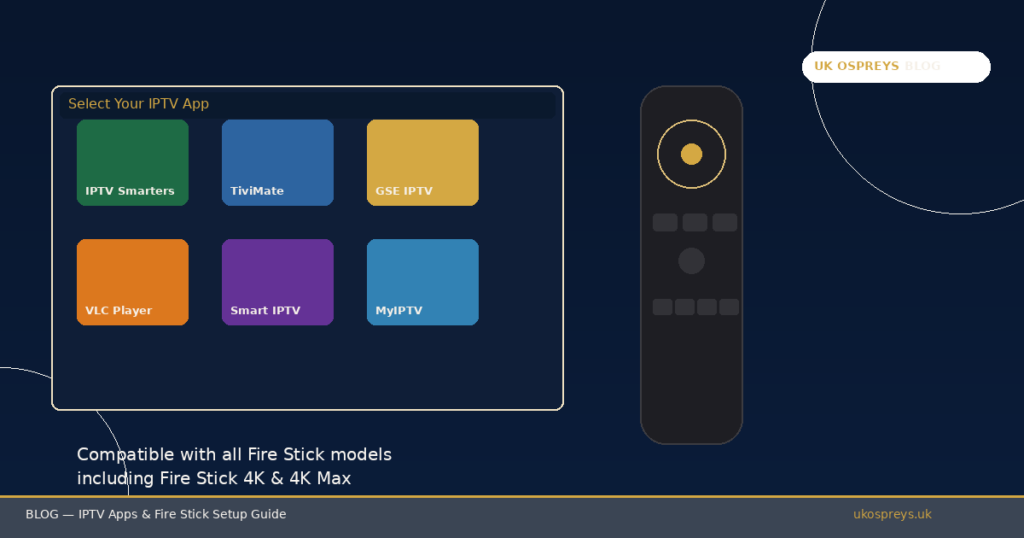
The Amazon Fire TV Stick is by far the most popular device for British IPTV in UK households, and for good reason. It is affordable, plugs directly into your television’s HDMI port, and runs a huge range of IPTV apps smoothly.
To get started, power on your Fire Stick and navigate to the search icon at the top of the home screen. Type in “IPTV Smarters Pro” or “TiviMate” and select the app from the results. Tap download and wait for the installation to complete. Once installed, open the app and select the login method. Choose Xtream Codes API if prompted. Enter the username, password, and server URL that were provided to you by UK Ospreys via WhatsApp. Tap the login or add user button and wait a few seconds for the channel list to load.
That is it. Your British IPTV is now live on your Fire Stick. You can browse live channels, access the on-demand library, and use the EPG programme guide to see what is coming up next. The entire process typically takes under three minutes.
If your Fire Stick model supports 4K, make sure your display settings are set to automatic resolution so you can enjoy Ultra HD content on compatible channels.
How to Set Up British IPTV on a Smart TV
Most modern Smart TVs from Samsung, LG, Sony, Hisense, and any television running Android TV have built-in app stores where you can download IPTV players directly.
For Samsung and LG Smart TVs, open the app store on your television and search for “IPTV Smarters” or “Smart IPTV.” Download and install the app. Open it, and when prompted, enter your Xtream Codes credentials or M3U URL provided by UK Ospreys. The app will load your channel list and you are ready to start watching British IPTV on the big screen.
For Android TV models, including Sony Bravia and many Hisense televisions, the process is identical to the Fire Stick method. Open the Google Play Store, search for your preferred IPTV app, install it, and enter your credentials.
If your Smart TV does not support IPTV apps natively, the simplest solution is to connect an Amazon Fire Stick or Android TV box to your television and follow the steps in the previous section. This gives you full access to British IPTV regardless of your television’s operating system.
How to Set Up British IPTV on Android Phones and Tablets
Android devices offer the simplest setup experience for British IPTV. Open the Google Play Store on your phone or tablet. Search for “IPTV Smarters Pro” and tap install. Once downloaded, open the app and select “Login with Xtream Codes API.” Enter the server URL, username, and password provided by UK Ospreys. Tap the add user button and your channels will begin loading within seconds.
You can now watch live British IPTV anywhere on your Android device. The app supports background play, picture-in-picture mode on supported devices, and full EPG integration so you can see the programme schedule at a glance.
For the best experience on a phone, connect to Wi-Fi when available. Mobile data works perfectly well for standard definition and HD streams, but 4K content will consume significant data quickly.
How to Set Up British IPTV on iPhone and iPad
Apple devices are fully compatible with British IPTV. The recommended app for iOS is GSE Smart IPTV, which is available for free on the App Store.
Open the App Store on your iPhone or iPad and search for “GSE Smart IPTV.” Download and install the app. Once opened, tap the remote playlist icon, usually represented by three horizontal lines with a plus sign. Select “Add M3U URL” and paste the M3U link provided by UK Ospreys via WhatsApp. Give your playlist a name such as “UK Ospreys” and tap save. The app will process the playlist and your channel list will appear.
Alternatively, some iOS IPTV apps support Xtream Codes login, which works identically to the Android method described above.
British IPTV on an iPhone or iPad is particularly useful for watching on the go. Whether you are commuting, travelling, or simply in a different room from the television, you have your full channel library in your pocket.
How to Set Up British IPTV on Windows and Mac Computers
Watching British IPTV on your laptop or desktop is straightforward using the free VLC Media Player, which is available for both Windows and Mac.
Download VLC from the official website at videolan.org and install it. Open VLC, click on “Media” in the top menu bar, then select “Open Network Stream.” Paste the M3U URL provided by UK Ospreys into the network URL field and click play. VLC will load your playlist and begin streaming.
For a more polished experience with an EPG guide and organised channel categories, you can also use the MyIPTV Player app from the Microsoft Store on Windows, or the IPTV Smarters desktop version available from the developer’s website.
Watching on a computer is ideal for multitasking. You can have a live Premier League match running in one window whilst working, browsing, or chatting in another.
How to Set Up British IPTV on MAG Devices
MAG set-top boxes are purpose-built for IPTV and offer a dedicated, television-like experience. If you own a MAG 250, 254, 256, 322, 420, or any newer model, setup is simple.
Connect your MAG box to your television via HDMI and ensure it is connected to the internet via Ethernet or Wi-Fi. On the main screen, go to “Settings,” then “System Settings,” then “Servers.” In the “Portals” section, enter the portal URL provided by UK Ospreys in “Portal 1 URL.” Save the settings and restart the device. The MAG box will connect to the UK Ospreys server and load your full channel list automatically.
MAG devices are favoured by viewers who want a traditional television feel without navigating apps. The interface is clean, responsive, and designed specifically for live IPTV streaming.
Troubleshooting Common British IPTV Setup Issues
Most British IPTV installations go smoothly, but occasionally you might encounter a small hiccup. Here are the most common issues and how to resolve them.
If channels are not loading after entering your credentials, double-check that you have typed the server URL, username, and password exactly as provided. Even a small typo or extra space can prevent the connection.
If you experience buffering during playback, first test your internet speed to confirm it meets the minimum requirements. Restart your router and your streaming device, then try again. If the issue persists, switching to a wired Ethernet connection instead of Wi-Fi often resolves buffering immediately.
If the app crashes or freezes, ensure it is updated to the latest version from your device’s app store. Clearing the app cache in your device settings can also help.
If none of these steps resolve your issue, our 24/7 WhatsApp support team (link to: https://wa.me/447988548254) is always ready to help. Simply visit our contact page (link to: https://ukospreys.uk/contact) or tap the WhatsApp button anywhere on the UK Ospreys website. We typically resolve technical issues within minutes.
Start Watching British IPTV Today
Setting up British IPTV is one of the easiest things you will ever do. No matter which device you use, the process takes less than five minutes and requires no technical expertise whatsoever. Once you are connected, you have instant access to over 20,000 live channels, thousands of on-demand films and series, and comprehensive sports coverage, all in stunning HD and 4K quality.
If you have not yet subscribed, visit our subscription page (link to: https://ukospreys.uk/subscription) to choose your plan. Our 12-month package at just €44.99 is the most popular choice among UK Ospreys customers, offering incredible value at roughly €3.75 per month.
Have questions? Browse our blog (link to: https://ukospreys.uk/blogs) for more guides, or reach out to our WhatsApp team (link to: https://wa.me/447988548254) anytime. Not sure about our policies? Review our Terms & Conditions (link to: https://ukospreys.uk/terms-conditions). We are here to make your British IPTV experience as smooth and enjoyable as possible.